

Deploy a template
1
Browse templates
In the bunny.net dashboard, go to Magic Containers and select Templates. The following templates are available:Frameworks
Apps
2
Select a template
Click on a template to view its details and begin deployment.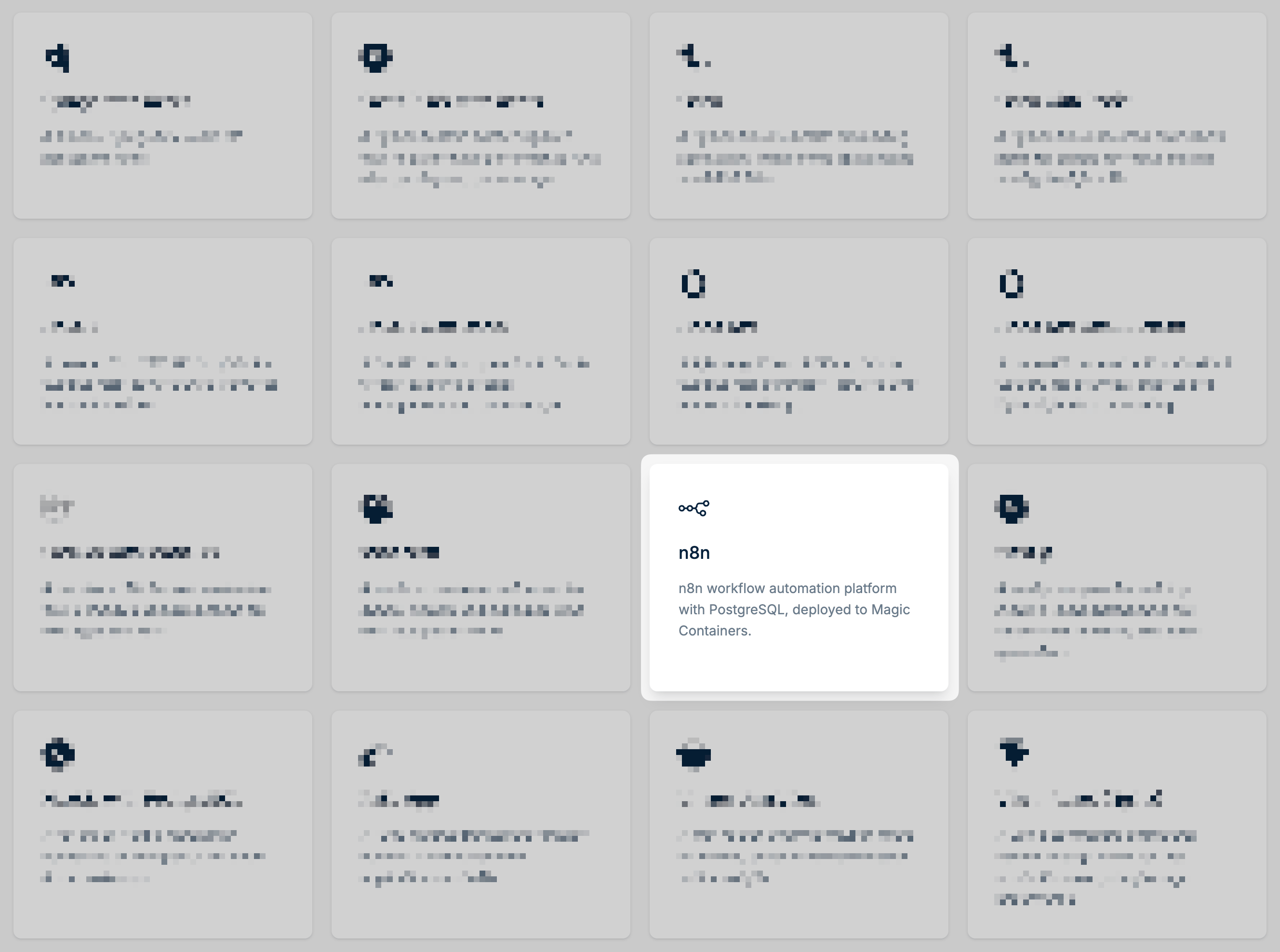
3
Name your app
Give your application a name.
4
Configure environment variables (optional)
Some templates include configurable environment variables, such as database usernames and passwords. Update these values as needed before deploying.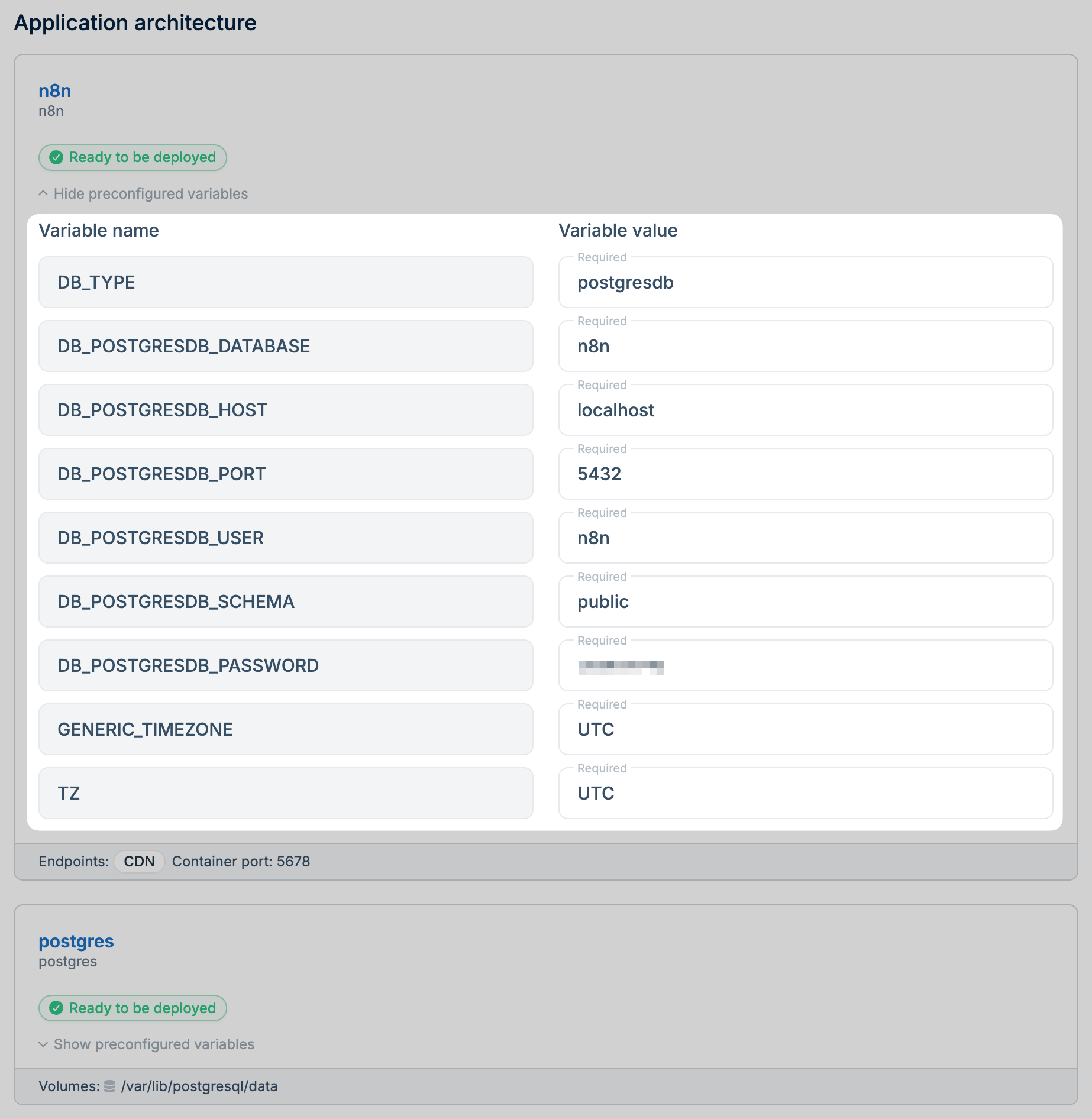
5
Choose a region
Select the region where you want to deploy your application.
6
Deploy
Click Deploy to launch your application.
Eject to GitHub
Templates that include application code and a sidecar database can be ejected to GitHub, giving you full control over the source code.1
Open your app
From the Magic Containers apps overview, select the app you deployed from a template.
2
Eject to GitHub
Click Eject to GitHub and connect your GitHub account if you haven’t already.
3
Configure an image registry
After ejecting, configure an image registry so Magic Containers can fetch your container images from GitHub.