

How to embed a video?
Embedding a video involves placing an<iframe> element on your webpage. By referencing the correct Bunny Stream embed url and including your video library and video IDs, you can display your video anywhere you like. Each embedded video is accessed via the following URL pattern:
<iframe>. For best results, we recommend using a responsive layout. If a fixed aspect ratio is required, a common approach is to use a container with a position:absolute;top:0;width:100%;height:100%; style, maintaining a standard 16:9 format or your desired ratio.
Example code:
How to embed vertical portrait (9:16) mobile video
The Stream player is responsive and automatically adapts to the size of its container, so it plays just as well in portrait as it does in landscape. The embed code you generate in the dashboard is only an example — the player runs inside a standard<iframe>, which you can style like any other HTML element to set its dimensions and aspect ratio. Adjust it to match your video and the requirements of the site you’re embedding into.
Portrait (9:16) is common for mobile-first content, short-form clips, and social-style players. The two examples below show how to size the iframe for vertical video — pick whichever suits your target browsers and layout:
- Option 1 — direct aspect-ratio (recommended): simpler markup, modern browsers only.
- Option 2 — wrapper div: broader browser support, and useful when you need to layer captions, overlays, or buttons on top of the player.
Option 1: Direct aspect-ratio (recommended)
For modern browsers, you can applyaspect-ratio directly to the iframe and skip the wrapper div entirely.
aspect-ratio: 9 / 16- locks the iframe to portrait proportionswidth: min(100vw, calc(100vh * 9 / 16))- scales the player to fill the viewport without overflow on any screen sizedisplay: block- removes the default inline gap beneath the iframe
This approach requires a browser that supports the
aspect-ratio CSS property (Chrome 88+, Firefox 89+, Safari 15+). For broader compatibility, use Option 2 below.Option 2: Wrapper div
If you need to support older browsers or want more control (e.g. overlaying UI elements on top of the player), use a wrapper div instead.- Sizing the wrapper div to the correct portrait dimensions
- Stretching the iframe to fill it absolutely with
position: absolute; width: 100%; height: 100%Use this approach when you need to layer overlays, captions, or buttons on top of the player.
Parameters
By default, many of the player’s controls and behaviors, such as captions, autoplay, and preload, can be configured on a global scale within the Player tab of your Bunny Stream library settings. Adjusting these default configurations ensures that any video embedded from that library inherits the same baseline behavior, providing a consistent user experience across all embedded instances.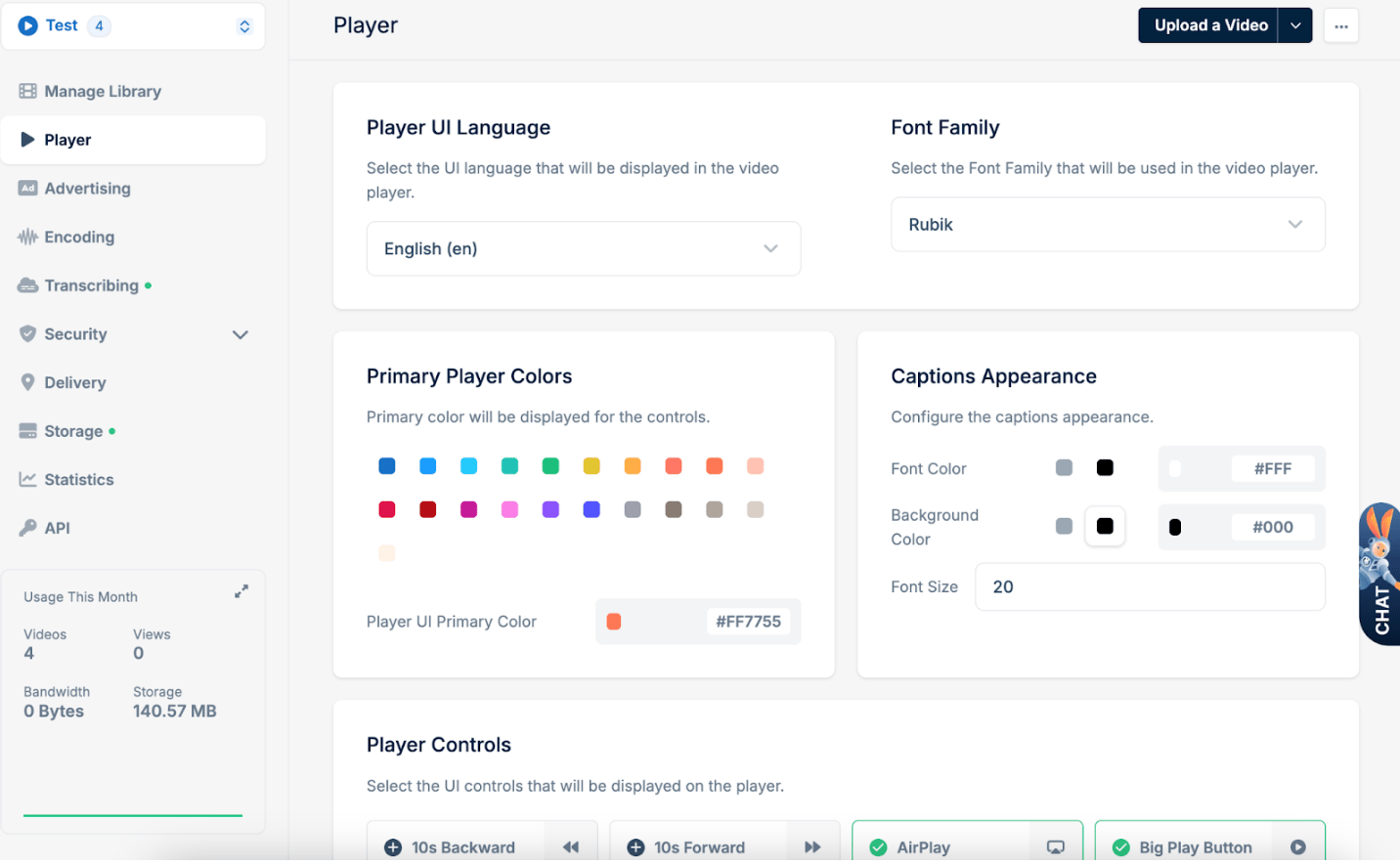 However, you can also fine-tune or override these defaults on a per-embed basis by adding query parameters directly to the embed or direct play URL. This flexibility allows you to tailor the playback experience for specific pages or use-cases without affecting the global settings of your library.